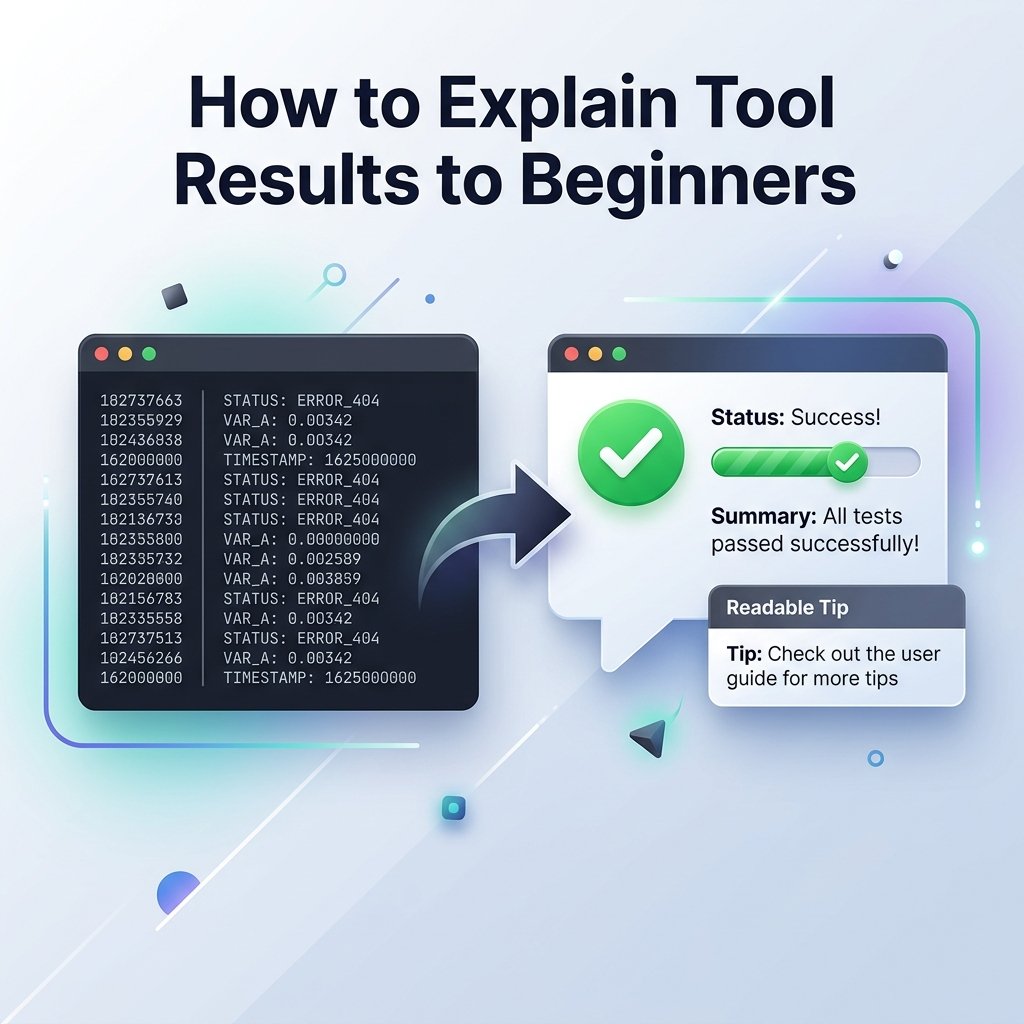
Building an online utility requires coding skills, but building a *successful* utility site requires design empathy. Many developer-owners focus entirely on script processing speed. They design clean, functional forms, but when the tool runs, it outputs raw, technical data without any explanation. To a developer, a result like "570px width" or "invalid tag syntax" is clear, but to a beginner, it is confusing.
If your website just outputs data without helping the user interpret it, visitors will leave, and ad networks may classify your pages as low-value tools. To create an outstanding user experience, your tools must explain what the results mean, why they matter, and what steps the user should take next. Here is how to write helpful, user-friendly tool output guides.
1. Avoid Raw Technical Jargon
When displaying results, translate raw parameters into plain English. For example, if a user paste HTML code into a sanitizer, do not just display a generic log of raw tags removed. Instead, explain the results in clear language, such as: "Removed custom styling tags to ensure your copy loads fast."
Similarly, if you host a utility like our HTML Cleaner, follow the result box with a brief summary explaining how stripping class and style attributes helps prevent page formatting conflicts in your CMS. Explaining the 'why' behind the output shifts your tool from a cold utility to an active educational guide.
2. Use Color-Coded Indicators with Context
Visual tokens like green, orange, and red help users scan results instantly. However, color alone is not enough; it must be backed by a clear explanation. A red bar with no text causes anxiety, while a red bar with a specific guideline is helpful.
For example, if you run a Meta Title Checker, do not just show a red bar if the title is 70 characters. Explain the visual limit, such as: "Red: Your title is 70 characters. Google will likely truncate this in search results because it exceeds the 60-character safe limit. Try shortening it to ensure searchers see your full message." This turns a simple limit warning into a clear instruction.
3. Handle Error States Gracefully
Nothing breaks user trust faster than cryptic programming errors. If a user inputs an invalid URL or pasted malformed syntax, throwing an error code like "Uncaught ReferenceError: x is not defined" makes the site look broken and unmanaged. A high-quality tool page handles inputs safely and guides users on how to resolve errors.
Design your error blocks with specific advice. For instance, if a hashing utility receives an empty input, show a soft placeholder warning: "Please enter text to generate a hash key." If a URL parser receives a string without a domain name, display: "Invalid URL format: Make sure your link starts with http:// or https://." Graceful errors respect your readers and prevent frustration.
4. Link to Related Guides for Context
A beginner using an online tool is often in the middle of a larger publishing task. A user checking word count is preparing to publish an article; a user formatting code is building a website. You can add value by linking to guides that cover the next step in their workflow.
If you host a utility like our Word Counter or Reading Time Calculator, don't leave the user hanging once they get their count. Link them directly to resources like "How Word Count and Reading Time Affect Content Quality." This helps them understand the strategic value of the numbers, building site credibility and reducing overall bounce rates.
5. Explain the 'So What?'
For every result your tool displays, ask yourself: *So what?* If a tool tells a writer their article takes 4 minutes to read, what should they do with that info? If a tool formats a string of code, what is the best practice for pasting it?
Add a brief "Next Steps" section below the output box. For instance, if you estimate a reading time, explain that 4 minutes is the engagement sweet spot for informational articles, and suggest adding subheadings to keep readers scrolling. Giving users actionable next steps increases the value of your pages and keeps readers engaged.
6. Gather Direct User Feedback for Iteration
To ensure your tool descriptions and result explanations are actually clear to beginners, implement a simple, client-side feedback form below your results block. A simple widget asking "Was this explanation helpful?" with thumbs-up and thumbs-down icons can provide valuable user feedback.
If you see a tool page receives multiple negative ratings, it is a clear indicator that your written guide is too technical or the result context is missing. Review the copy, simplify the sentences using a Word Counter check, and add concrete examples. Listening to your user feedback ensures your tool pages remain high-value educational resources.
How to Structure Tool Outputs
"780 words"
Helpful Translation"Your article has good depth for a basic guide."
Actionable Next StepAdd internal links and check your snippet length.
"3 spaces removed"
Helpful Translation"Cleaned trailing spaces to prevent layout shifts."
Actionable Next StepPaste code straight into your editor.
"Title: 75 chars"
Helpful Translation"Title is too long and will get cut off in Google."
Actionable Next StepReduce to under 60 characters.
Conclusion
An online tool should be a teaching assistant, not just a black-box script. By replacing raw database readouts with clear translations, color-coded explanations, and links to companion guides, you respect your visitors' intelligence and build a high-quality site that stands out for AdSense reviews and user retention.