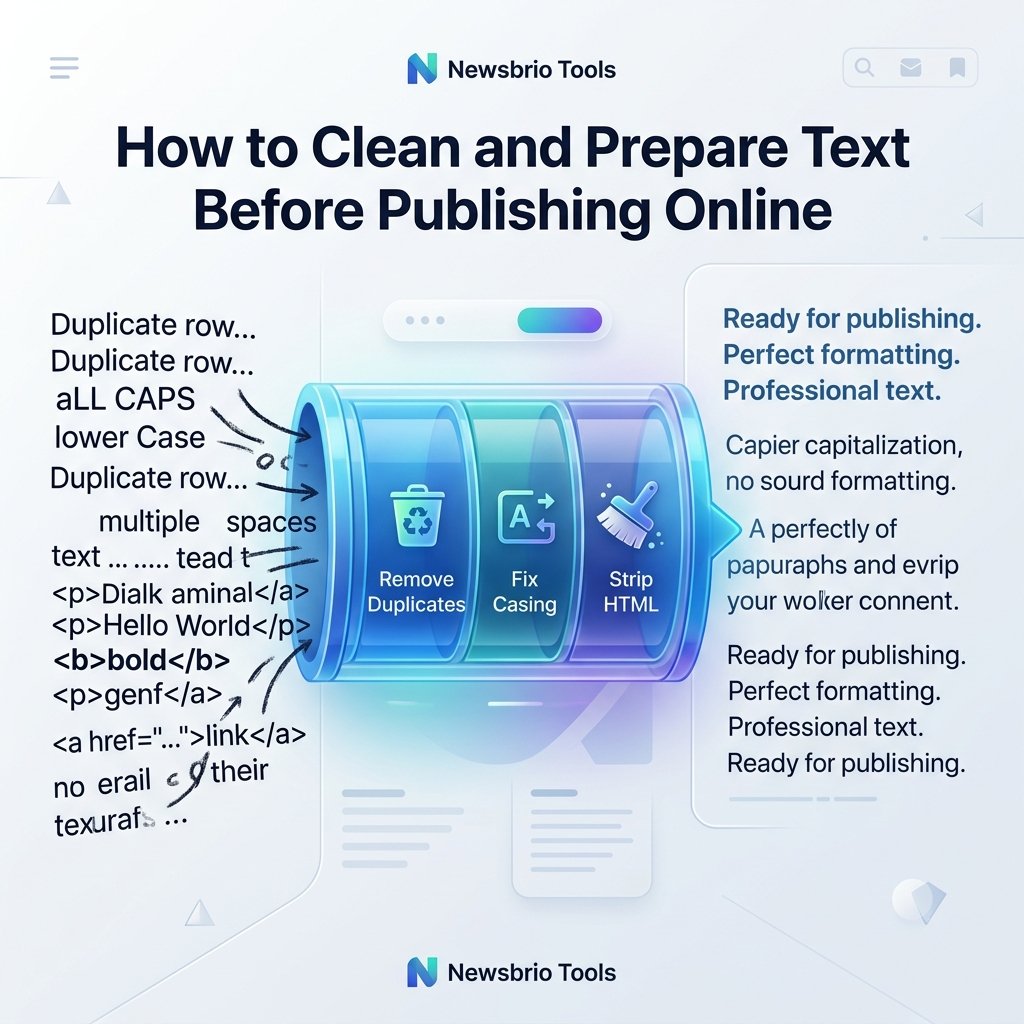
Writing an article is only the first half of the blogging process. Before you click publish, you must prepare and clean the text. Raw copy copied from word processors like Microsoft Word or Google Docs often contains hidden formatting tags, excessive spaces, duplicate list items, or inconsistent capitalization. Publishing this raw code directly can slow down your site, cause layout errors, and ruin the reading experience.
Establishing a pre-publish text cleaning workflow ensures that your copy loads quickly and looks professional. Instead of manually editing hundreds of lines of code, you can use simple online utilities to sanitize your copy. Here is a step-by-step editorial workflow to prepare your text for the web.
Step 1: Sanitize Raw Casing and Capitalization
Inconsistent headings look unprofessional and signal a lack of quality control. For example, if some H2 headings are in Title Case while others are in Sentence case, your layout feels unorganized. Before generating HTML code, check that your headings follow a consistent style guide.
You can standardize your headings using a formatting utility like the Text Case Converter. Paste your heading strings into the tool to convert them instantly to UPPERCASE, lowercase, or Title Case. Standardizing capitalization is especially important for lists, buttons, and navigation elements.
Step 2: Strip Hidden Code and Clean the HTML
Google Docs and Microsoft Word make drafting easy, but copying directly from them into your CMS (like WordPress or a custom panel) introduces messy code. These editors add span tags, custom font styles, and class attributes that bloat your page size and can break your site's stylesheet (CSS).
Before publishing, pass your draft through an online sanitizer like our HTML Cleaner. Paste your rich text or code snippet to strip away dangerous inline scripts, custom margins, and empty paragraph tags, keeping only semantic tags like headings, paragraphs, strong text, and lists. Clean HTML is easier for search engines to crawl and parse accurately.
Step 3: The Threat of Copy-Paste Control Codes
Copying text across different software can introduce hidden unicode control codes, non-breaking spaces, or formatting characters that are completely invisible in standard text editors. These invisible marks can break search indexers, disrupt line-wrapping behaviors, and make copy look strange on specific browser versions.
To eliminate these risks, editors copy text into clean raw inputs. Passing your text through a dedicated spacing sanitizer strips out any invalid control codes, converting curly quotes to straight quotes, and ensuring that no hidden characters remain. Standardizing unicode properties prevents database encoding errors during CMS submission.
Step 4: Remove Extra Whitespaces and Blank Lines
Accidentally pressing the spacebar repeatedly or leaving extra paragraph breaks at the end of sections creates uneven gaps on your public pages. These spacing errors look unpolished on mobile viewports.
You can remove trailing spaces and multiple empty line breaks instantly by pasting your text into the Remove Extra Spaces tool. Standardizing spacing ensures that your CSS layouts render exactly as intended across all devices.
Step 5: Clean Up Lists and Remove Duplicate Items
If you are writing resources, directories, or keyword lists, duplicate entries can easily slip in. Having the same item listed twice makes your page look poorly edited.
Rather than scanning lists line-by-line, run them through a sorting utility like the Duplicate Line Remover. This tool scans your input, identifies identical rows, and strips them away instantly. This is extremely helpful when managing long lists of keywords, tags, or outbound resources.
Step 6: Convert Markdown to Semantic HTML
Many modern editors write drafts in Markdown because it allows them to format text using simple indicators (e.g., using hashes for headings or asterisks for bold text). However, web browsers cannot display Markdown directly; it must be converted to standard HTML tags.
You can convert your raw Markdown syntax into clean HTML by using our Markdown to HTML converter. This tool parses your Markdown and outputs valid, semantic HTML code that is ready to paste straight into your CMS editor, preserving all heading structures and links perfectly.
A Standard Text Cleaning Workflow
1. Casing Check
Utility to UseText Case Converter
Action AccomplishedStandardize headings and list item casing.
2. Code Sanitization
Utility to UseHTML Cleaner
Action AccomplishedStrip inline formatting styles and span tags.
3. Line Audit
Utility to UseDuplicate Line Remover
Action AccomplishedStrip out identical list items and blank lines.
4. Spacing Cleanup
Utility to UseRemove Extra Spaces
Action AccomplishedRemove trailing spaces and multiple spaces.
Common Mistakes to Avoid When Preparing Text
- Forgetting to check links: While cleaning formatting tags, verify that your hyperlinks are still correct. Do not strip out the `href` attributes during cleaning.
- Skipping verification on code tags: If your article contains code snippets (like HTML or CSS), make sure you encode the tags so they don't break the rendering of the actual page.
- Not checking formatting on mobile: Ensure that your clean text has appropriate paragraph breaks to prevent massive walls of text on mobile screens.
By establishing a repeatable text cleaning checklist before you publish, you ensure that your site remains fast, error-free, and professional for every reader who visits.
Step 7: Formatting Length and Readability Flow
Once your HTML and trailing spaces are cleaned, perform a final readability audit. Long blocks of text are difficult to read, especially on mobile devices. Use short paragraphs (two to three sentences) and break up long sections using descriptive subheadings.
You can check the flow of your text by running it through our Reading Time Calculator. If your post is long, check that you have used bold highlights and lists to make the content scan-friendly. Standardizing these design formatting tokens ensures that your readers stay engaged and read your entire article without getting fatigued.